

Ever since Google launched its document tools for office use, it has consistently risen in popularity, and rightly so. All of the tools, including Google Docs, are powerful and convenient tools, perfect for daily office and institutional use. They are easy to utilize and come loaded with features that suit high-level office activities, official works, and educational purposes.
In this comprehensive guide, we’ll walk you through the steps to highlight text seamlessly within your documents. Whether you’re collaborating on a project, studying, or simply want to draw attention to important information, highlighting is a powerful tool. Follow along as we explore various highlighting techniques and tips to make your documents stand out and convey your message with clarity.”
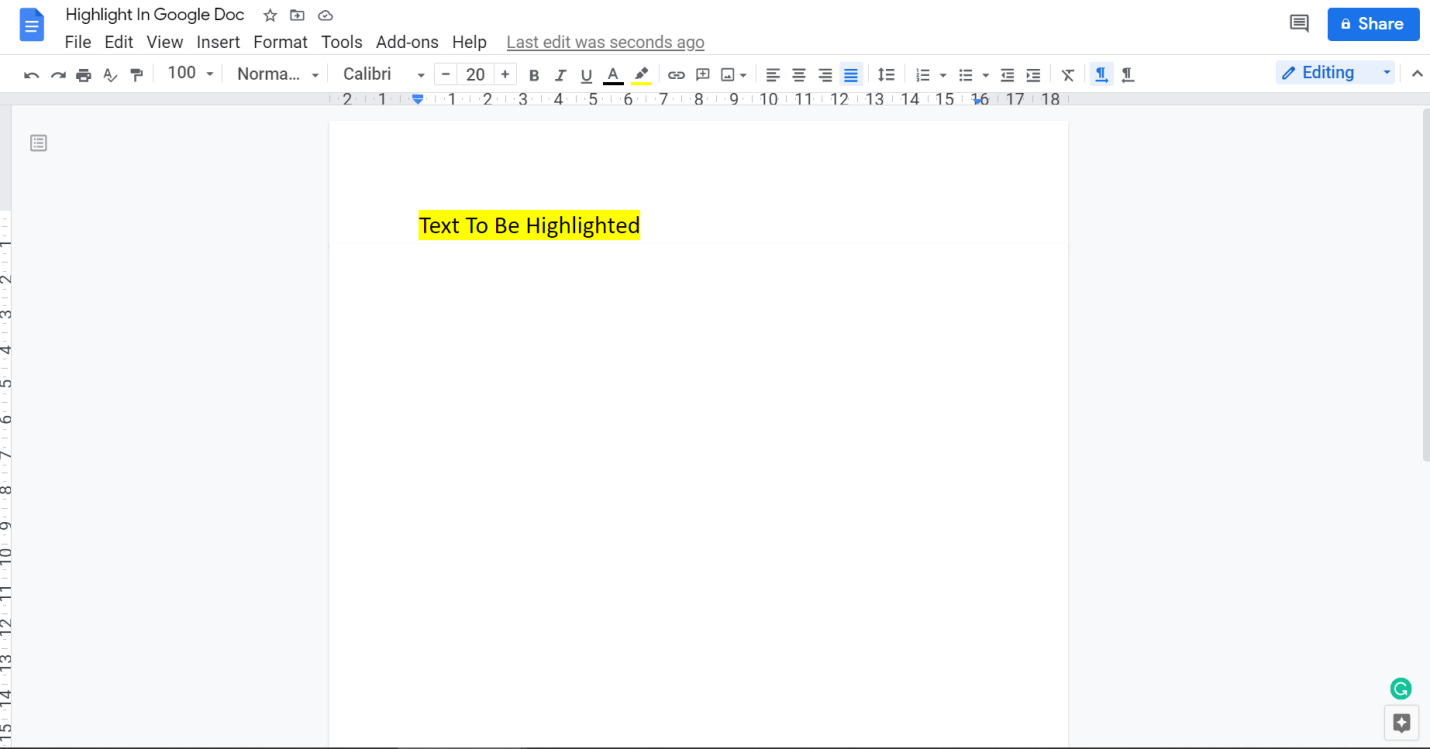
In short, highlighting is an important feature that can be very effective and efficient in communicating information—wondering how to highlight in Google Docs and access yourself to its benefits? We have prepared a guide for you to help you with that. Alongside that, we have also explored other features and tips for using Google Docs to its best. Read on to know more.
Table of Contents
How to Highlight text in Google Docs?
Let us first begin with how to highlight on Google Docs in a step by step procedure. Honestly, highlighting in Google Docs is a very easy task to do. Here is what you need to do:
- Open your desired Google Doc to begin highlighting your text.
- Usually, you will find the Highlight Tool option in the Taskbar, right below the Menu Bar. However, if you do not have the Highlight Tool available, click on ‘Add-ons’ in the Menu Bar and select ‘Get Add-ons.’
- A window will unfold where you need to locate the ‘Search Bar.’ Once you have found it, type ‘Highlight Tool’ in it and search.
- From the results, select the first option that shows (the Highlight Tool). Once you have clicked on it, Google will ask your permission to install the tool and grant access to your document. Click on ‘Agree’ and wait for the tool to get installed.
- Once the installation is complete, you will now be able to start highlighting your text. Simply select the text you need to highlight from your document with your cursor. Once you have chosen, find the Highlight Tool in your Taskbar and click on it.
- You will be provided with a range of colors from a drop-down box as a choice for your highlight color.
- Select your preferred color, and voila! Your text will now be highlighted.
That is all for how to highlight all in google docs. It is a straightforward and helpful process. No matter what variety of documents you have, you can now use this highlight feature to make the best of your text and make it more structured for your readers.
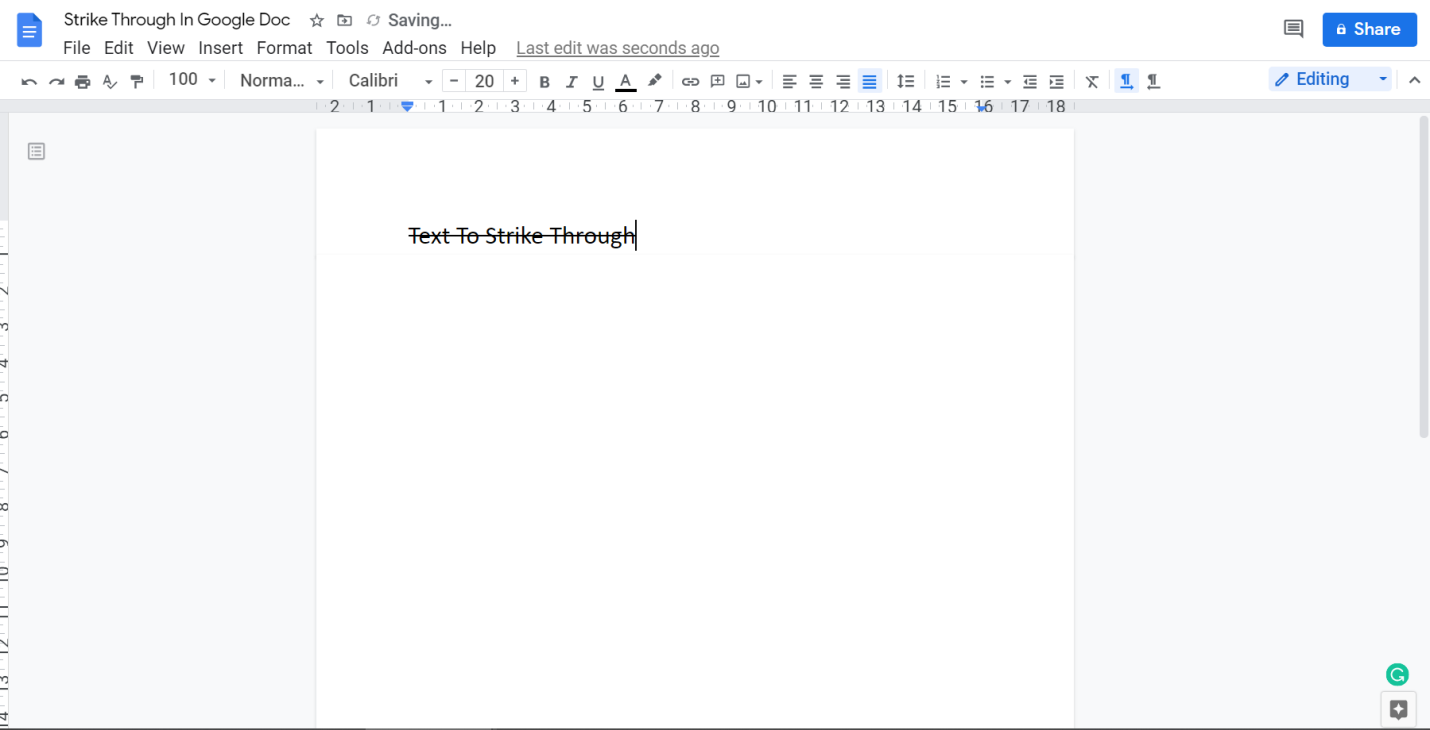
How to Strike Through Texts in Google Docs
While we are on the matter of Google Docs and the Highlight Tool, another helpful tool that all Google Docs users should know about is the Strikethrough Tool. Now, this is a tool perfect for all editors and professors. It allows you to edit documents and correct mistakes without essentially removing the original text.
This allows others to compare the original piece with the edited ones effectively. Not only that, but the Strikethrough feature can also be used for several other things. If you want to learn how to use it, let us quickly get into the details. Please note that this process is effective for laptops and PCs.
- Go to Google Docs and open your desired document to try out the Strikethrough tool.
- Once your document is open, select the part of the text with your cursor that you want to edit.
- Next, locate the ‘Format’ option in the Menu Bar and click on it.
- From the drop-down menu, look for the Strikethrough option and click on it.
- You will now find your selected text to have been struck out.
If you don’t like the lengthy procedure but instead favor shortcuts, there is one for the Strikethrough Tool in Google Docs. Simply press the Alt key, Shift Key, and ‘5’ after selecting your piece of text. The text will automatically get stuck out.
The process may differ from laptop to phones, so if you are accessing your Doc through your smartphones, this what you need to do:
- Open your desired Doc through the Google Doc app on your phone or tablet.
- Once you have the document opened, select the text that you want to strike out.
- Locate the Format Icon on the top (it looks like an A with horizontal lines next to it) and select it.
- From the Format options, look for the Strikethrough button, which looks like an S that has been struck through.
- Select the option, and your text will be struck out.
It is as easy as that. After seeing this article, you now know how to strike through texts and how to highlight multiple words in Google Docs. Now that you know how to use both the Strikethrough and the Highlight Tools, you can reach new heights with your Google Docs and create and edit documents like never before.
Let us now quickly move on to a few tips, tricks, and advice that you can make do with while using Google Docs. Given its popularity, it is pretty handy to know your way around Google Docs efficiently for better productivity.
Valuable Tips to Make the Most Out of Google Docs
With its advanced features, Google Docs has become a virtual office, business, and institutional tool that everyone must know how to operate. Luckily, it is very easy to use. However, despite that, there are things about it that can help you make the most out of it and increase productivity.
In fact, it won’t be wrong to state that Google Docs is stuffed with hidden skills that can serve you immensely if you know about them. Therefore, to know more, let us take a look at some awesome tips about Google Docs.
Edit like an expert
- Forget cutting and pasting. The next time you need to cut and paste the piece of text anywhere within a document, simply select the target text, hold down on the Shift Key, and drag and drop to the desired location.
- Don’t go about the longer route to get things done on Google Docs. Simply hit the Alt key and then ‘/’ to browse through your Menus. For example, you want to strike through a text. Select the target text, press Alt + /, and type strikethrough. The Strikethrough option will show up even before you finish typing ‘strikethrough.’
- The next time you want to change the font size of your text, simply select the text and hold on to the Ctrl (or Command) Key and Shift Key. To increase the font size, press the Period (.) Key and to decrease the size, press the Comma (,) key.
- Ever heard of Voice Typing? Google Docs allows your fingers to take a break and types down your document by listening to you. You can do that by looking for the ‘Voice Typing’ option under the Tools menu or simply hitting the Control (Command)+Shift+S buttons to activate your Google Doc Voice Typing feature.
Enhance your documents
- Doing research work on Google Docs? Google Docs is an excellent assistant for research and can help you do your research without even leaving the processor. Locate the Explore menu on Google Docs or press the Ctrl (Command)+Alt+Shift+I to activate the Explore feature. You will now be capable of surfing the net while you work on your document. It can also help you bring up search results based on your past works.
- Google Docs lets you quickly edit the images that you have attached to your docs. With its cropping and editing image features, all you need to do is select the image, go to Format, and select the Image option to access all image editing tools.
- It is natural for us to get confused over the meaning of words while we type. However, Google Docs helps you with that when you are stuck. Bring the cursor over the word that you want the meaning of and press Ctrl (command)+Shift+Y. Google Docs will bring up the definition of the same word and display it for you.
Collaborate on a project
- Collaborating cannot be any easier with Google Docs. It allows you to share your Doc with other members and edit it in real-time. This implies that more than one person can be on the same Doc, working, sharing thoughts, and leaving comments simultaneously. All you need to do is request the members to join and grant them Editor access.
- Google Docs has an excellent translation feature that allows you to translate whole documents from one language to another. Head over to the Tools menu, locate the ‘Translate Document’ option, and select the language you want.
Google Docs indeed is a potent tool if used correctly. With this article, you have now unlocked a few of the many features that Google Docs provides its users. You may also add your add-ons to make Google Docs even more powerful in your desired manner. SaaSworthy recommends a list of add-ons that you can try out.
