
Close Menu
  • Categories
    • Top Software
    • Statistics
    • Research Reports
    • Guides
    • Software Reviews
    • SaaS Talks
  • Resources
    • SW Score Methodology
    • SaaS Terms Glossary
  • Browse Software
Facebook X (Twitter) Instagram
SaaSworthy Blog | Top Software, Statistics, Insights, Reviews & Trends in SaaSSaaSworthy Blog | Top Software, Statistics, Insights, Reviews & Trends in SaaS
  • Categories
    • Top Software
    • Statistics
    • Research Reports
    • Guides
    • Software Reviews
    • SaaS Talks
  • Resources
    • SW Score Methodology
    • SaaS Terms Glossary
  • Browse Software
SaaSworthy Blog | Top Software, Statistics, Insights, Reviews & Trends in SaaSSaaSworthy Blog | Top Software, Statistics, Insights, Reviews & Trends in SaaS
Home»Guides»How to Do Screen Recording in Windows 11
Guides

How to Do Screen Recording in Windows 11

Saurabh YadavBy Saurabh Yadav4 Mins ReadAugust 29, 2024
Facebook Twitter LinkedIn Reddit Email
Table of Contents
  1. Method 1: Via Xbox Game Bar
  2. Method 2:  Windows Key + Alt + R method
  3. Method 3: Via Third-party software
  4. FAQs

Over the use of Windows users have faced several problems when it comes to screen recording but with the introduction of the shortcut keyboard method as well as the built-in Xbox game bar the process has become quite simple and user-friendly. Not just this but there are several other options such as third-party software, which in turn are incredibly quick and tend to offer a bunch of additional usable functionalities such as video editing, live-streaming options, webcam features, and much more. Needless to say, the screen recording on Windows 11 stands strong to be a valuable tool that can be used for both personal as well as professional use. Further, in the article we have discussed the three most used methods by which a person can easily screen record on Windows 11. If you are trying to do so but are getting stuck somewhere or the other, well then this is the article for you. Please go through the easy steps given for each of the three methods.

Table of Contents

  • Method 1: Via Xbox Game Bar
  • Method 2:  Windows Key + Alt + R method
  • Method 3: Via Third-party software
  • FAQs
    • Is there a limitation on time while screen recording in Windows 11?
    • What is the keyboard shortcut to access the Xbox Game Bar for screen recording in Windows 11?
    • Is recording audio in addition to screen recording possible in Windows 11?
    • What is the supported format of recordings on Windows 11?

Method 1: Via Xbox Game Bar

The Xbox game bar method is considered to be one of the most easiest and handy method when it comes to screen recording a video on Windows 11.

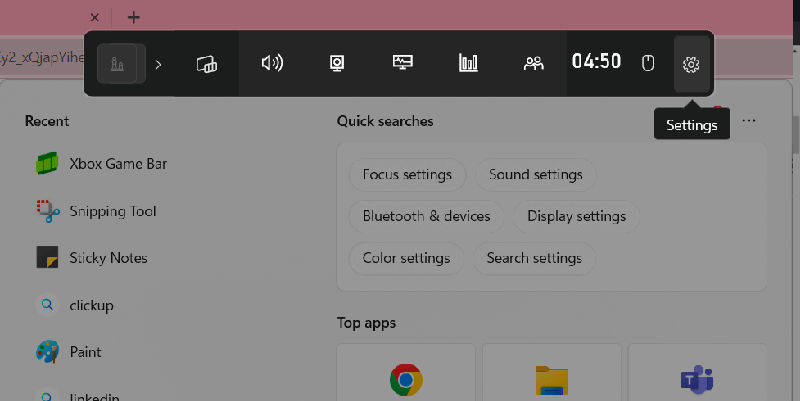
  • Step 1: Open the Xbox game bar, well the shortcut to opening is by pressing Windows +G on the keyboard.

  • Step 2: The next, step is to access the recording bar which will be visible on the floating Xbox game bar, and click on the recording option.
  • Step 3: Click on the capture button and also select the video quality, to configure the recording status.
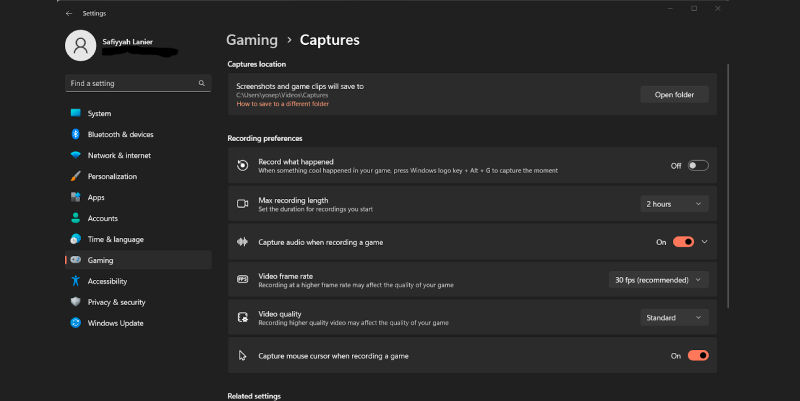
  • Step 4: Adjust the video and audio quality by choosing the available quality options.
  • Step 5: Next click on the record button and within seconds the recording will start.
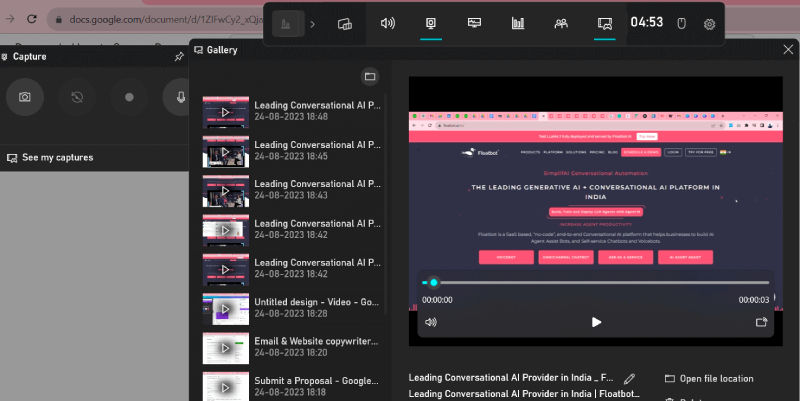
  • Step 6: Once the recording is saved, you can also access it by clicking on it. 
Method 2:  Windows Key + Alt + R method

Windows also offers another easy and quickest method to screen record on Windows. The user can simply do so by hitting on some keys on their keyboards and the recording will commence.

  • Step 1: Click on Windows Key + Alt + R and the screen recording will start.
  • Step 2: In order to stop the recording, press on these keys again and the recording will be saved.
  • Step 3: You can then save it and access it.

Also read: Top 7 Free Quantum Machine Learning Software 2024

Method 3: Via Third-party software

A user can also make use of the third-party software in the attempts of screen recording. Well, there are several software floating in the market. Based on your likings and choice, you can select one of these and get started with the screen recording task.

  • Step 1: Select, from the available various third-party screen recording software for Windows 11. Some of these software are OBS Studio, Camtasia, or Bandicam.
  • Step 2: Next, you can download and install the software of your choice and follow in the respective steps available for the particular software to get started with the screen recording.

FAQs

Is there a limitation on time while screen recording in Windows 11?

Screen recordings that are built in Windows 11 such as Xbox Game Bar and the Windows Key + Alt + R  face no time limit by default But while making use of the third-party software, a user might come across time limitations.

What is the keyboard shortcut to access the Xbox Game Bar for screen recording in Windows 11?

The keyboard shortcut to access the Xbox Game Bar is by pressing Windows + G on the keyboard you are using.

Is recording audio in addition to screen recording possible in Windows 11?

Yes, both screen as well as audio can be simultaneously recorded on Windows 11.

What is the supported format of recordings on Windows 11?

MP4 format is typically the default format of Windows 11.

Previous Article10 Best Low-Code Platforms That Can Help Your Business in 2024
Next Article 10 Best Free Furniture Design Software (2024)
Saurabh Yadav

Saurabh is a seasoned SaaS expert with over eight years of experience, specializing in HR technology, payroll, and workforce management solutions. A PMP-certified professional and an alumnus of XLRI, he has collaborated with leading industry publishers, sharing his insights on ATS, payroll, employee engagement, HR software, benefits administration, compensation management, interview scheduling software, performance management systems, and employee recognition. With a deep understanding of SaaS trends, Saurabh continues to shape the future of HR tech through his thought leadership and expertise.

Related Posts

Advanced Security in eSignature Platforms: How SignNow Implements AES-256 Encryption, SOC 2, and HIPAA Compliance

October 6, 2025

Enterprise Grade Document Security in PDF Tools: How pdfFiller Handles Encryption, Access Controls, and Compliance

October 1, 2025

Nano Banana Trend: How to Make 3D Figurines with AI (2025)

September 16, 2025

How to Use Integrated Risk Management to Improve Cybersecurity Posture

September 15, 2025
Editor's Picks

Freshdesk Pricing Plans 2025: Which Plan Is Right for Your Support Team

September 24, 2025

Best Employer of Record (EOR) Services for September 2025

September 2, 2025

Top 50 Onboarding Statistics for 2025

July 31, 2025

Comet vs Dia: The Rise of AI Browsers

July 21, 2025

NinjaOne Acquires Dropsuite to Unify Backup and Endpoint Management

July 15, 2025

Talkroute Review 2025: Is This the Virtual Phone System Your Business Needs?

July 10, 2025

Employer of Record vs PEO: Which Service Is Right for You?

July 7, 2025

ClickUp Pricing Plans & Features (2025): Is It Still the Best All-in-One Work Platform?

June 19, 2025

SaaS Pricing Models Explained: 7 Strategies to Maximize Revenue in 2025

June 11, 2025

Gusto Pricing Explained: Which Plan Is Right for Your Business in 2025?

June 9, 2025
Recent Posts

Top 11 Cloud-Based CRM Software in 2025

March 16, 2026

10 Best Cloud Accounting Software in 2025

October 10, 2025

OpenAI Launches Apps Inside ChatGPT, Pushing Towards a New Platform Future

October 9, 2025

8 Best Self-Employed Accounting Software for 2025

October 7, 2025

Advanced Security in eSignature Platforms: How SignNow Implements AES-256 Encryption, SOC 2, and HIPAA Compliance

October 6, 2025

Enterprise Grade Document Security in PDF Tools: How pdfFiller Handles Encryption, Access Controls, and Compliance

October 1, 2025

Nano Banana Trend: How to Make 3D Figurines with AI (2025)

September 16, 2025

How to Use Integrated Risk Management to Improve Cybersecurity Posture

September 15, 2025

Patriot Pricing Plans 2025: Tiers, Plans, Discounts, and Features Explained

September 12, 2025

Market Size & Growth Trends in Resource Management Software

September 11, 2025

Subscribe now!

Power up your business growth through innovation! Subscribe to our monthly newsletter for cutting-edge SaaS insights and to stay ahead of the curve with the latest trends in software

About
  • Home
  • All Categories
  • Blog
  • SW Score Methodology
  • SaaS Terms Glossary
Vendors
  • Get Listed
Legal
  • Privacy Policy
  • Terms of Use
  • Cookie Policy
SaaSworthy
Facebook X (Twitter) LinkedIn Instagram

feedback@saasworthy.com

©2026 SaaSworthy.com

Type above and press Enter to search. Press Esc to cancel.