

Notion AI is a powerful tool that enhances productivity by bringing artificial intelligence into your workspace. It automates tasks like content generation, summarization, brainstorming, and even complex decision-making. In this guide, we’ll explore how you can use Notion AI to streamline your work processes and make your Notion experience more efficient.
Table of Contents
What is Notion AI?
Notion AI is an intelligent assistant built into the Notion platform. It leverages machine learning to help users generate content, summarize notes, brainstorm ideas, and organize information more effectively. By integrating with Notion’s workspace, AI-driven features allow individuals and teams to automate repetitive tasks, reduce manual effort, and improve overall workflow efficiency.
Setting Up Notion AI
Using Notion AI is straightforward. Follow these steps to get started:
Step 1 – Create or Open a Notion Workspace:
- If you don’t already have a Notion account, sign up at notion.so.
- Once registered, create or open a workspace.
Step 2 – Activate Notion AI:
- Notion AI is built into the platform but may require an upgrade to a paid plan depending on the features you need.
- Navigate to your workspace settings, and look for the AI settings. Make sure it’s enabled.
Step 3 – Access Notion AI in Your Documents:
- Open any page in Notion, and you’ll notice an “Ask AI” button or similar AI functionality on the toolbar.
- You can use it to ask questions, generate content, or automate certain tasks.
Once set up, you’re ready to start utilizing Notion AI.
Key Features of Notion AI
Notion AI comes with a host of features designed to improve productivity:
- Content Generation: Draft articles, emails, or summaries based on the information you provide.
- Brainstorming: Offers ideas, suggestions, or lists to jump-start creativity.
- Summarization: Summarizes long documents, meeting notes, or project outlines into concise bullet points.
- Task Management: Helps break down tasks and prioritize them based on deadlines and importance.
- Writing Assistant: Refines content by checking grammar, improving clarity, and providing stylistic suggestions.
These features make it a versatile tool for both personal and professional use.
How to Use Notion AI for Content Creation
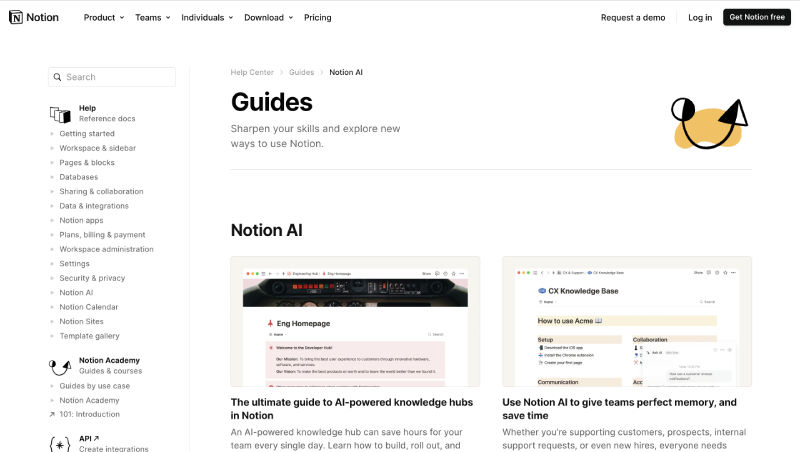
One of the most popular uses of Notion AI is content creation. Whether you are writing blog posts, reports, or brainstorming ideas for a project, Notion AI can help:
Steps to Create Content with Notion AI:
- Open a New Page: Begin by opening a new page in your Notion workspace.
- Select a Template or Create a Custom Prompt: You can either start from scratch or use one of Notion’s templates to guide your writing.
- Click on the “Ask AI” Button: When you need inspiration, click the AI button to ask for suggestions. For instance, you could type, “Generate an introduction for a blog post about time management.”
- Edit and Refine: Notion AI will generate a response, which you can then edit or expand upon as necessary.
Examples of AI-Powered Content Creation:
- Generate Blog Post Ideas: Simply ask Notion AI to provide a list of topics.
- Writing Outlines: Ask for an outline to structure your content, and Notion AI will deliver a draft.
- Draft Emails or Reports: You can request a professional email draft or project summary.
This makes writing faster and more efficient, especially for brainstorming or first drafts.
How to Use Notion AI for Task Management
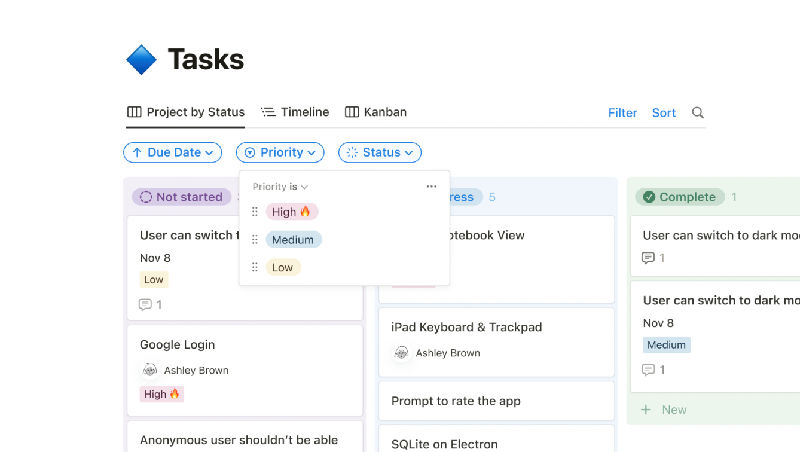
Beyond content creation, Notion AI is a valuable tool for managing tasks and workflows:
Organizing Tasks:
- Create a To-Do List: Start by creating a task list in Notion.
- Use AI to Prioritize: Ask Notion AI to prioritize tasks based on deadlines or importance. For example, you could ask, “What should I focus on today?”
- Set Reminders and Automation: You can even use AI to set up task reminders and automate routine tasks.
- Break Down Complex Projects: Notion AI can help deconstruct large projects into manageable subtasks, making it easier to plan your work.
By automating task management, Notion AI helps you stay on top of deadlines and focus on what matters.
Also read: Top 5 Online Project Management Software in 2024
Tips to Maximize Your Notion AI Experience
To get the most out of Notion AI, consider these tips:
- Provide Clear Prompts: The more specific your prompts are, the better the results. If you want an email draft, mention the tone (formal/informal) and key points you want to include.
- Combine Templates with AI: Use Notion’s templates for meeting notes, project management, or personal journaling, and then enhance them with AI-powered features for better productivity.
- Refine AI-Generated Content: While Notion AI does a great job at generating content, always review and refine the output to ensure it meets your specific needs.
Notion AI Limitations
While Notion AI is a versatile tool, it does have its limitations:
- Contextual Understanding: Notion AI may not always understand highly complex or industry-specific prompts, so you may need to adjust or clarify your queries.
- Dependence on User Input: The quality of the AI-generated content largely depends on the clarity and detail of the input you provide.
- Limited Customization: While powerful, Notion AI may not be as customizable as standalone AI writing tools designed specifically for content creation.
These limitations are relatively minor, but understanding them will help set realistic expectations.
Conclusion
Notion AI is an excellent addition to the Notion platform, offering users an intuitive and efficient way to manage tasks, generate content, and brainstorm ideas. By following the steps outlined above, you can integrate Notion AI into your workflow, increasing productivity and reducing manual tasks. Whether you’re managing personal tasks, writing professional content, or organizing projects, Notion AI has the tools to help you succeed.
With Notion AI, the possibilities for improving productivity are endless. Use it smartly, and you’ll find that it becomes an indispensable part of your daily workflow.
